AiM Race Studio 3 Knowledge Hub
AiM Race Studio 3 Knowledge Hub
Your practical guide to AiM Race Studio 3 setup, device configuration, session downloads, data analysis, track maps, channels, firmware support, video overlays, and troubleshooting across the wider AiM motorsport range.
Built by Harris Race Radios for New Zealand and Australian racers, teams, parents, and race engineers working with AiM MyChron, Solo, SmartyCam, MX, EVO, PDM, ECU, and other supported AiM systems.
Start with the AiM MyChron Knowledge Hub → | AiM Downloads & Documentation → | Complete AiM Academy Video Library →
Race Studio 3 Hub Navigation
Overview | Resources | Video Workflows | Product Range | Basic Workflow | Devices | Configuration | Data Analysis | Channels | Maps & GPS | Firmware | Troubleshooting | FAQ
What Is AiM Race Studio 3?
Race Studio 3 is AiM's software environment for working with supported AiM motorsport data systems. Depending on the device, it can configure channels and device settings, transfer recorded sessions, review data, manage track information, and support firmware or software maintenance.
The exact features, connection method, available channels, and workflow depend on the AiM product. MyChron, Solo, MX, EVO, SmartyCam, PDM, ECU, and other AiM systems should always be handled according to the device-specific manual and current product documentation available through the Harris Race Radios support network.
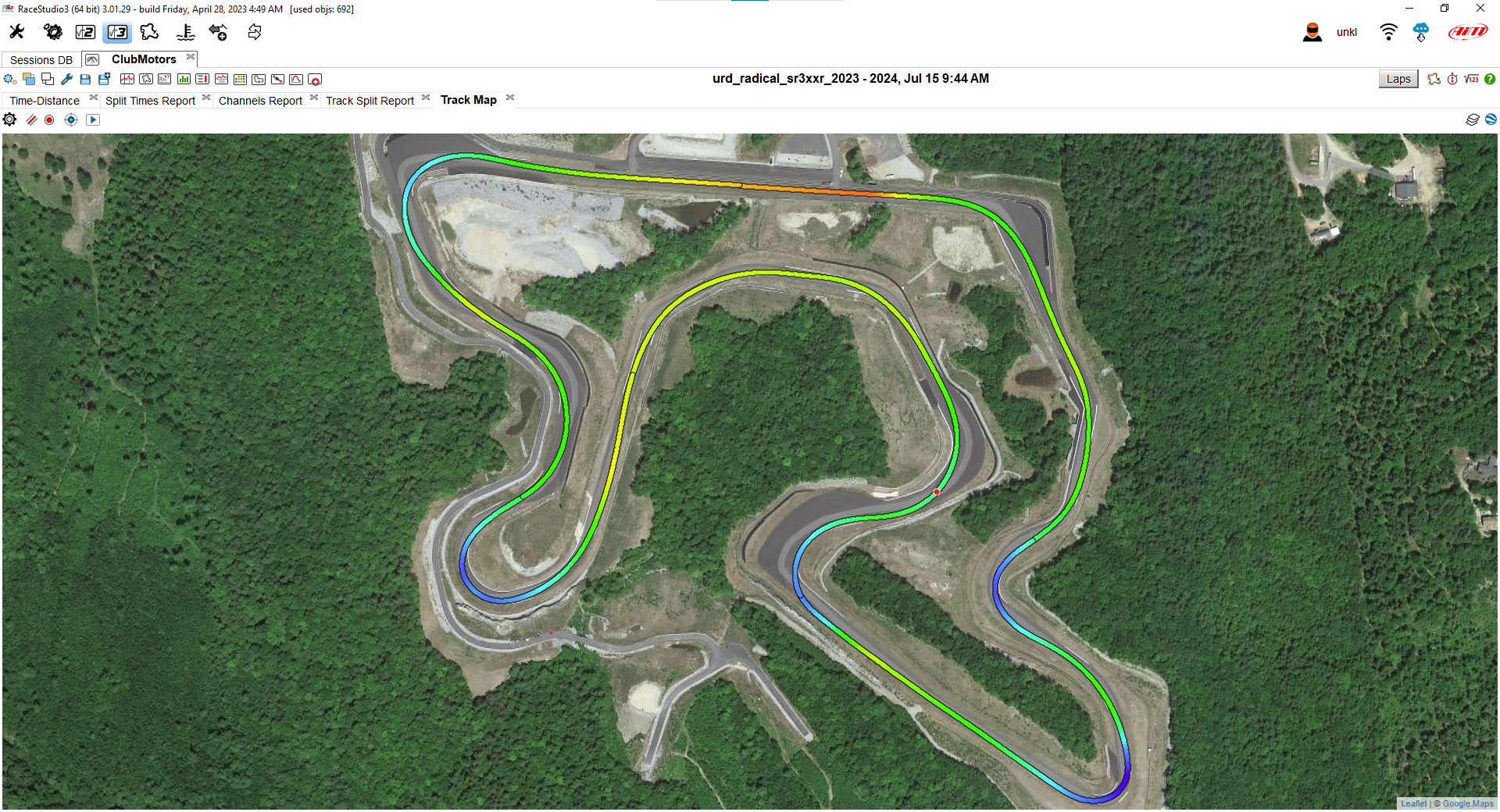
Race Studio 3 data visualisation shown in AiM's official documentation.
Internal Race Studio 3 Resources
Use the Harris Race Radios support pages for AiM software, firmware, product documentation, and training resources.
- AiM Software Downloads support section
- AiM Firmware support section
- AiM Product Documentation support section
- AiM Support Articles section
- AiM Sensor Technical Data section
Official AiM Video Workflows
This section brings the relevant official videos into the knowledge hub. The complete library remains available on the AiM Academy Training Videos page, with AiM retaining YouTube as the video host.
Race Studio 3 walkthrough
Downloading data in Race Studio 3
Solo 2 Wi-Fi downloads
MyChron session download
Race Studio 3 data-download configuration
Firmware update
Track management
Lap replay analysis
SmartyCam 3 Sport configuration
Solo 2 DL and SmartyCam setup
Measures Graph
Track Map
AiM Academy Training Videos
Use the complete AiM Academy Training Videos page for the full official collection, including Race Studio 3, MyChron, Solo, SmartyCam, firmware, track management, lap analysis, and other AiM training content.
Race Studio 3 Across the AiM Product Range
Race Studio 3 workflows are not limited to karting. The exact functions depend on the product, firmware, connected sensors, and installation.
- MyChron: kart lap timing, engine channels, GPS, sensors, and data analysis.
- Solo: lap timing, GPS track data, reference laps, and driver performance review.
- SmartyCam: video and data workflows, overlays, and synchronised review where supported.
- MX and EVO systems: vehicle data logging, channels, ECU information, and race-engineering workflows.
- PDM, ECU, CAN, and sensor systems: configuration and data channels for complex installations.
Use product-specific guidance in the internal Downloads page and contact Harris Race Radios before applying a MyChron workflow to another AiM product.
The Basic Race Studio 3 Workflow
- Identify the AiM device. Confirm the exact model, firmware family, sensors, and connection hardware.
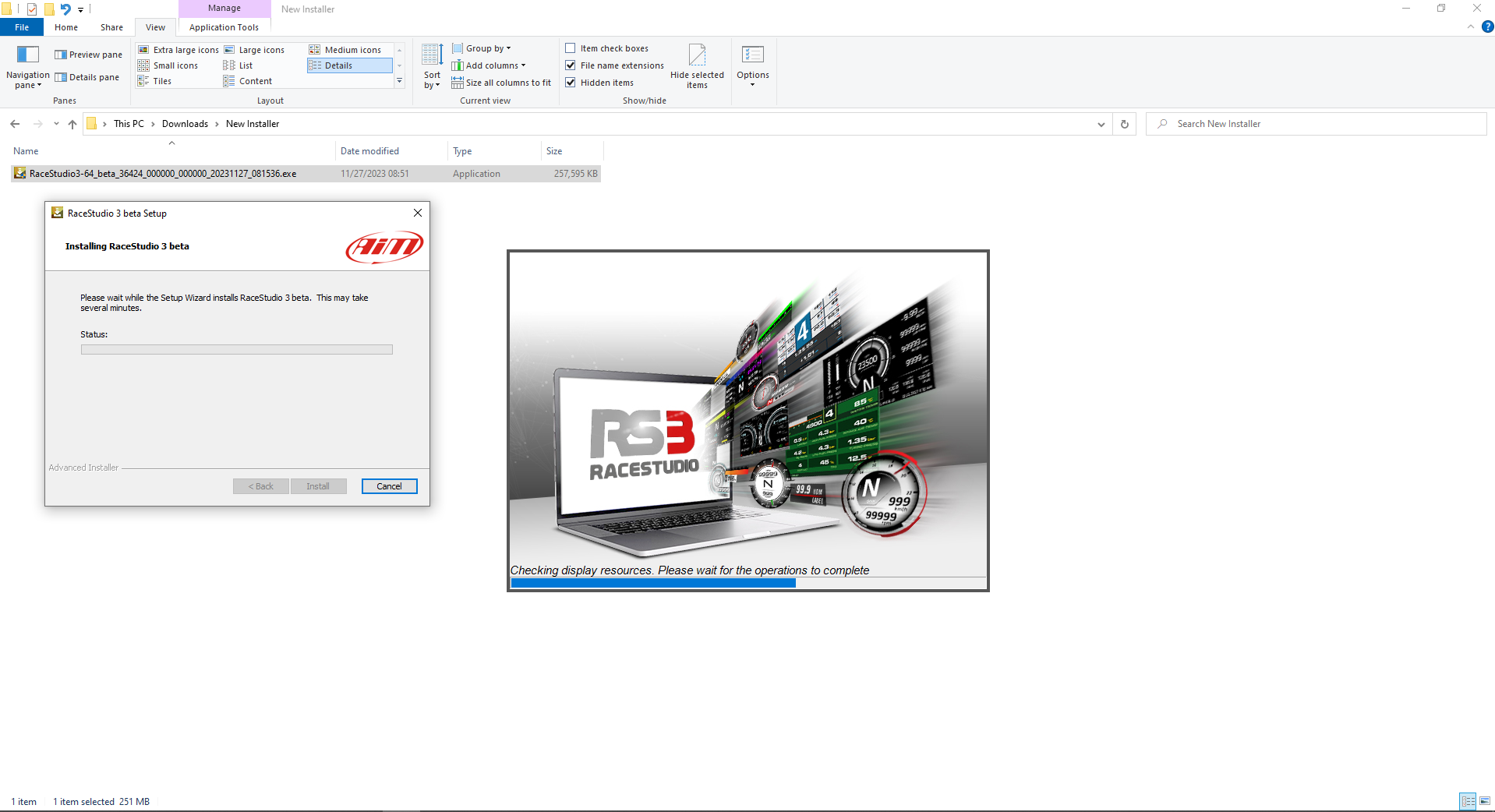
- Install or update the official software. Use the internal Harris support resource for applicable guidance.
- Connect the device carefully. Use the correct AiM cable, interface, or transfer method.
- Save the existing configuration. Retain a copy of the current configuration and recorded sessions.
- Configure the device and channels. Confirm units, sensor types, sampling settings, alarms, display pages, and GPS settings.
- Download the session. Preserve the original file before editing or comparing data.
- Review the data in context. Compare laps, driver inputs, speed, engine channels, GPS position, and consistency.
- Make one controlled change. Record the setup change, test it, and compare the result.
AiM Devices That Rely On Race Studio 3
These are the current AiM systems in the Harris Race Radios range that connect to Race Studio 3 for configuration, session downloads, and data analysis. Always confirm your exact model and firmware against the product listing before assuming a feature is supported.
- AiM Solo 2 Motorsport GPS Lap Timer
- AiM Solo 2 DL GPS Lap Timer with ECU Input
- AiM MXm Dash Logger
- AiM MXS 1.3 5-inch Dash Logger
- AiM MXP 6-inch Dash Logger
- AiM SmartyCam 4 Motorsport Camera & Data Overlay System
Need help setting up Race Studio? Talk to Aaron, Charlie or Rex →
Connecting AiM Devices
Connection steps vary by product. A MyChron dash, Solo lap timer, MX logger, EVO system, PDM, ECU, and SmartyCam setup may use different cables, interfaces, memory methods, or device settings.
- Confirm the exact AiM model and firmware version.
- Use the correct cable or interface.
- Check the device is powered as required.
- Close other software using the same connection.
- Try a known-good cable and direct computer connection where appropriate.
- Check the relevant internal Harris support page before changing drivers, wiring, or firmware.
For MyChron-specific installation, sensor, wiring, and data guidance, continue to the AiM MyChron Knowledge Hub.
Not sure which AiM device fits your application? See the AiM Buyer’s Guide by Discipline →
Race Studio 3 Configuration Guide
Configuration is where the device is told what it is measuring and how that information should be displayed or recorded. Keep a saved baseline before changing a working setup.
- Device model and identification
- Firmware and software version
- Measurement units and display preferences
- Connected sensors and channel assignments
- Temperature, pressure, position, RPM, and speed settings
- GPS and track information
- Display pages, alarms, and warning thresholds
- Sampling or logging settings appropriate to the device
- Driver, vehicle, kart, or session naming conventions
Do not copy a configuration from another vehicle, engine, kart, or AiM product without checking the sensor type, wiring, calibration, and channel meaning.
Downloading and Analysing AiM Data
Good analysis starts with good data management. Keep the original session, use clear file names, and record the track, driver, vehicle, weather, tyres, gearing, and setup changes.
- Lap versus lap: compare a representative fast lap with a consistent reference lap.
- Driver versus driver: compare only when vehicle, conditions, tyres, fuel, and session context are understood.
- Trace review: use speed, RPM, throttle, brake, steering, and temperature traces together.
- GPS review: use position and speed overlays to identify where the difference occurs on track.
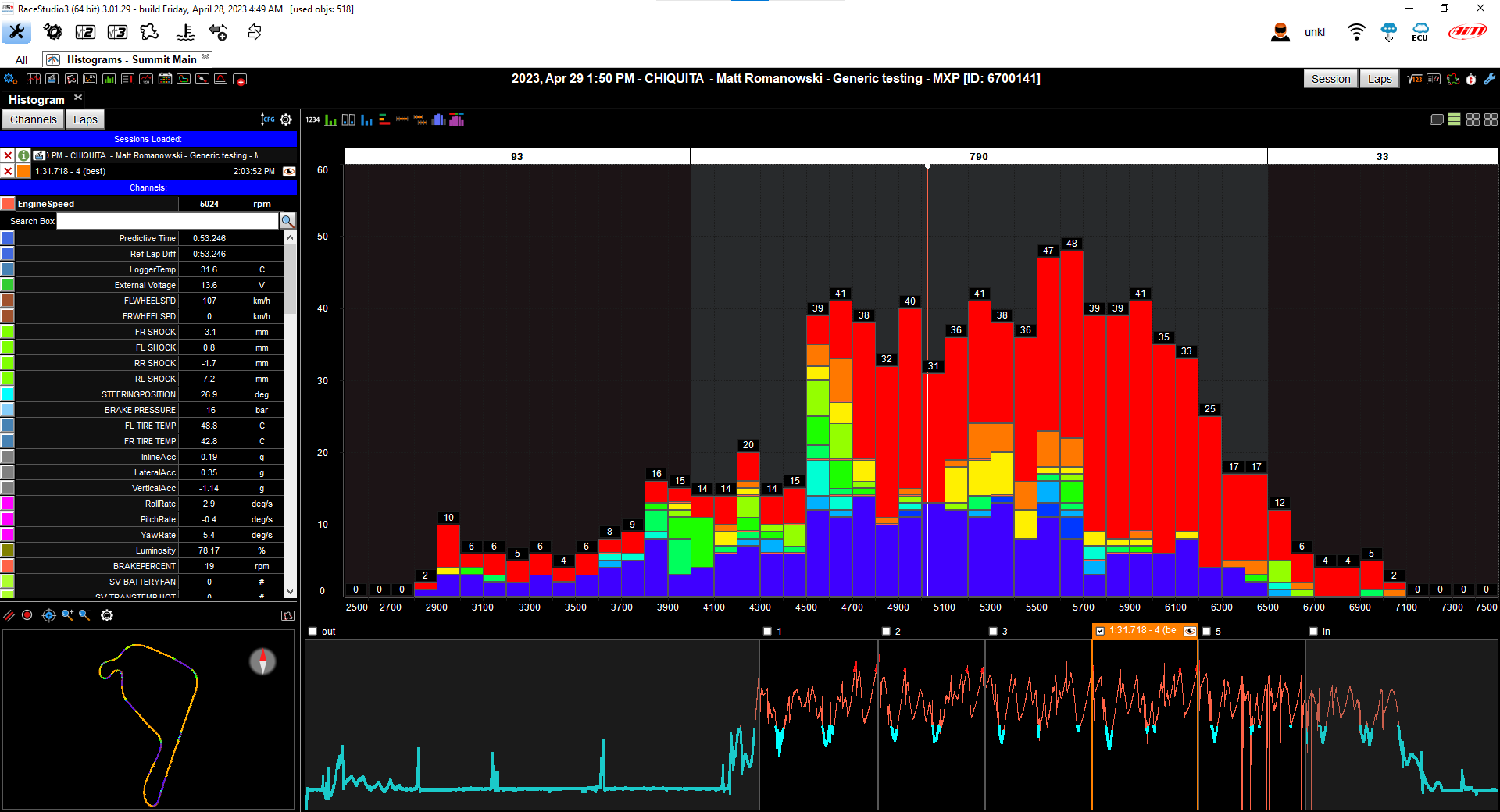
Understanding Common AiM Data Channels
| Channel | What it can help show | Check before interpreting |
|---|---|---|
| RPM | Engine speed, shift points, gearing, and acceleration behaviour. | Sensor type, polarity, calibration, and application. |
| Speed | Acceleration, braking, corner entry, minimum speed, and exit speed. | Speed source, calibration, and track conditions. |
| GPS speed and position | Track location, speed traces, lap timing, and line comparison. | GPS reception, track definition, and reference lap quality. |
| Water temperature | Operating temperature and changes during a session. | Sensor location, type, wiring, and engine requirements. |
| CHT and EGT | Temperature behaviour where correctly installed. | Sensor placement, calibration, engine type, and guidance. |
| Throttle position | Throttle application, lift points, and driver input comparison. | TPS installation, calibration, and linkage movement. |
| Brake pressure | Brake application, release timing, and repeatability. | Pressure sensor installation and calibration. |
| Steering angle | Turn-in, steering correction, and input comparison. | Sensor alignment, zero position, and mounting security. |
Channel names and available measurements vary by AiM device and installation. Never diagnose an engine, chassis, driver, or logger problem from one channel without checking the sensor and installation first.
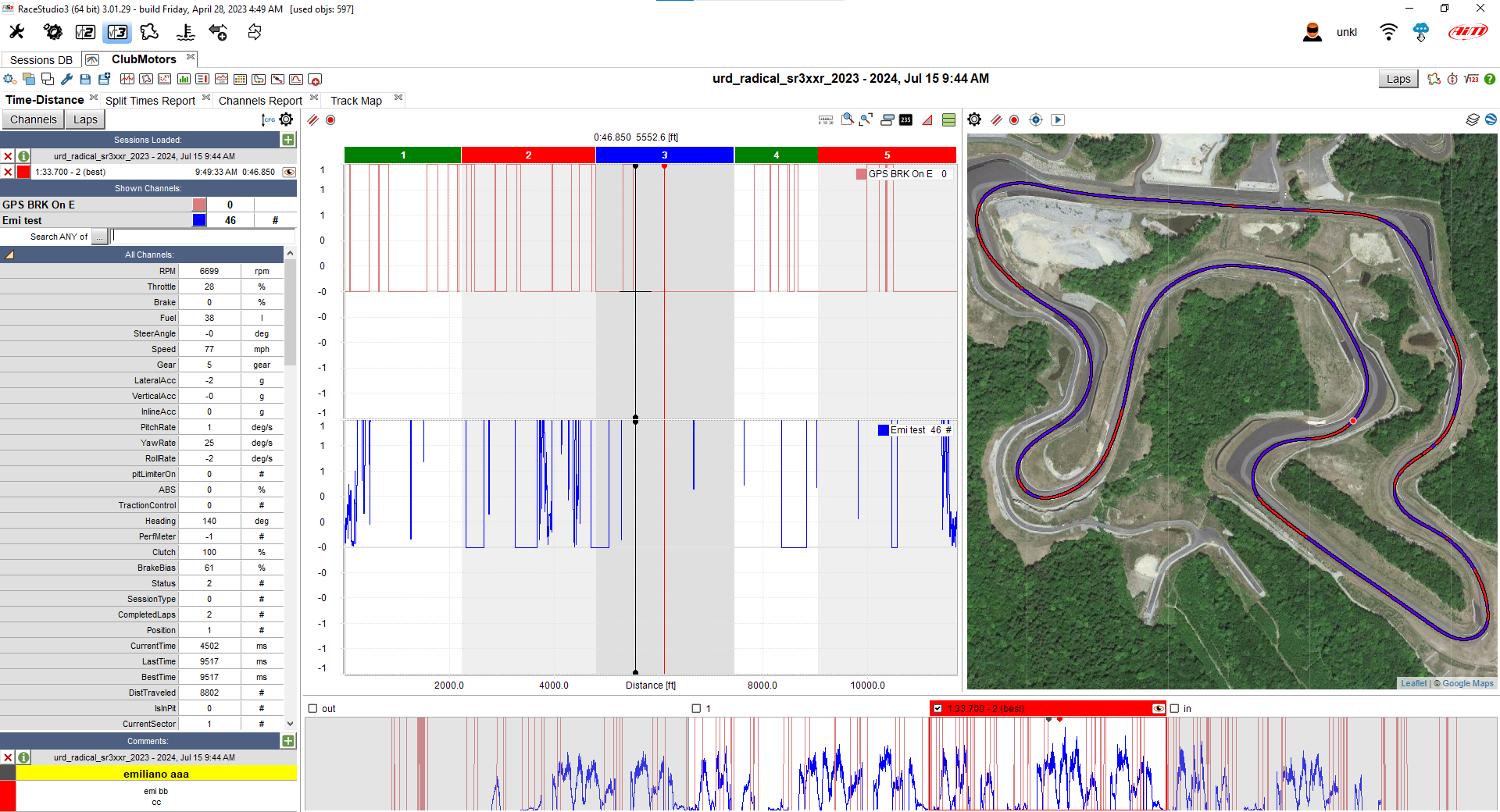
Track Maps, GPS and Lap Comparison
Track maps connect a trace difference to a braking point, apex, throttle pickup, exit, or change of line. Use track position, speed, throttle, brake, RPM, gear, lap time, and driver notes together.
GPS accuracy, satellite reception, track configuration, and the selected reference lap affect the result. Treat small differences cautiously and look for repeatable patterns.
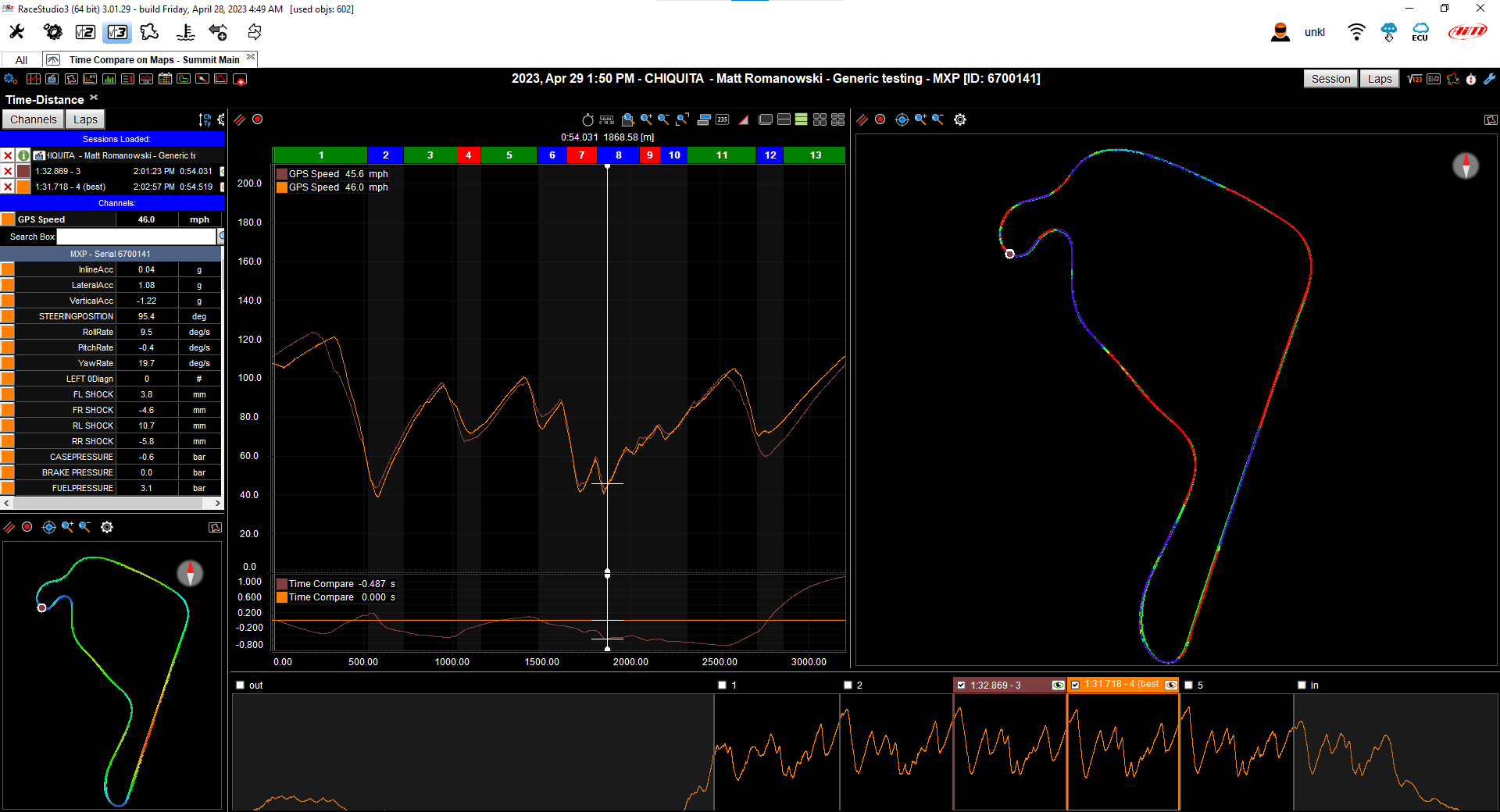
Racing in NZ or AU? Factory AiM track maps are sometimes inaccurate for local circuits. Read our Track Maps Guide to find out how Harris Race Radios corrects this.
Race Studio 3 Firmware and Software Updates
Firmware updates can add support, correct issues, or change available functions. Treat them as controlled maintenance.
- Record the exact device model and current firmware version.
- Save configurations and download important sessions.
- Use reliable power and the internal Harris support guidance.
- Do not disconnect the device during an update.
- Read the applicable release information before changing firmware.
Use the internal AiM Firmware support section before deciding whether an update is appropriate.
Race Studio 3 Troubleshooting
AiM device is not detected
Confirm model, cable, power, connection method, software version, and device instructions. Try a different direct connection and known-good cable.
Data is missing or looks wrong
Check the original session, channel assignment, sensor installation, calibration, units, and GPS conditions.
GPS or track information is not correct
Check GPS reception, selected track configuration, date and time settings, and whether the session contains reliable GPS data.
Firmware update did not complete
Stop and follow the internal Harris support instructions for the exact device. Do not load firmware intended for another model.
Race Studio 3 behaves differently after an update
Check the applicable support guidance, supported device version, and configuration files. Contact Harris Race Radios if the issue affects a race-critical setup.
Frequently Asked Questions
Is Race Studio 3 used only with MyChron?
No. Workflows can apply across supported AiM systems including MyChron, Solo, SmartyCam, MX, EVO, PDM, ECU, CAN, and sensor installations.
Can Race Studio 3 be used with Solo, MX, EVO, or SmartyCam products?
Supported functions depend on the exact product and software release. Use the AiM Product Documentation section and contact us before assuming a workflow or channel is available.
Can I compare two drivers or two sessions?
Yes, when the sessions are comparable. Check vehicle, tyres, fuel, track conditions, driver, and configuration before judging the difference.
Should I update firmware before a race?
Do not update race-critical equipment immediately before an event without a reason, a backup, and time to test the complete system. Use the firmware guidance.
Need Help With AiM Data?
For product selection, sensor fitment, radio and intercom integration, or help identifying the right AiM hardware for your application, contact Harris Race Radios.
Browse the internal AiM Downloads & Documentation page or the AiM Academy Video Library.
Race Studio 3 Deep-Dive Guides
- How to Install AiM Race Studio 3: Setup Guide for MyChron, Solo, MX & SmartyCam
- AiM Race Studio 3 Data Analysis Guide: Reading Your Session Data
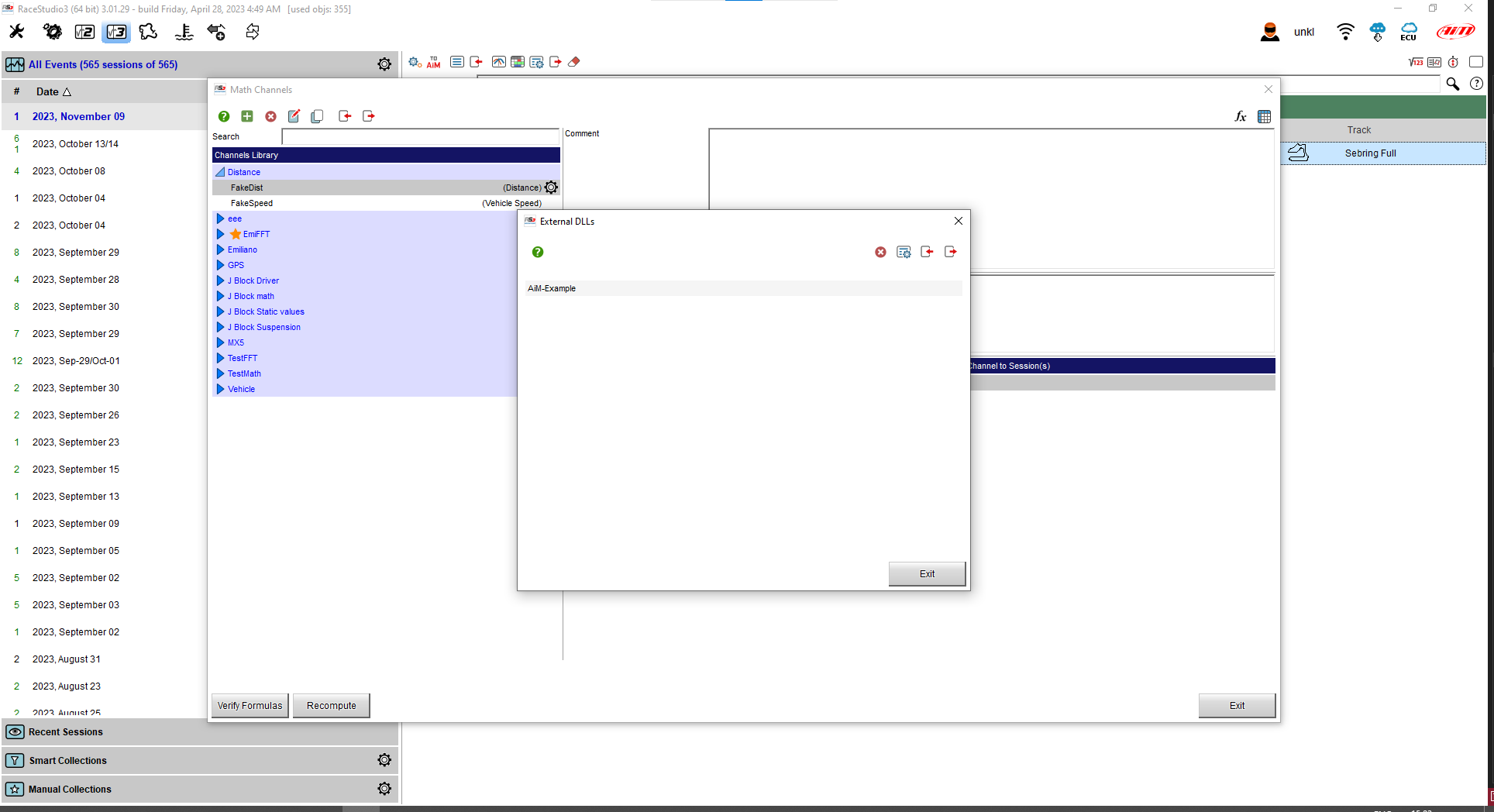
- AiM Race Studio 3 Maths Channels Guide: Building Custom Calculated Channels
- AiM Race Studio 3 Track Maps Guide: Getting Accurate NZ & AU Track Data
- AiM Race Studio 3 Driver Comparison Guide: Comparing Laps Fairly
- AiM Race Studio 3 Firmware Update Guide: Updating Safely